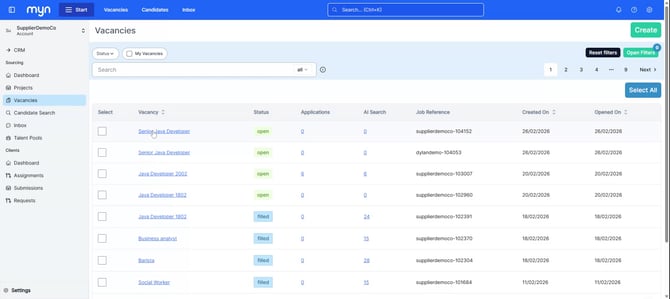
Step 1: Open the Vacancy from Your Vacancies List
From your vacancies list, locate and open the vacancy for which you want to create a client requisition.
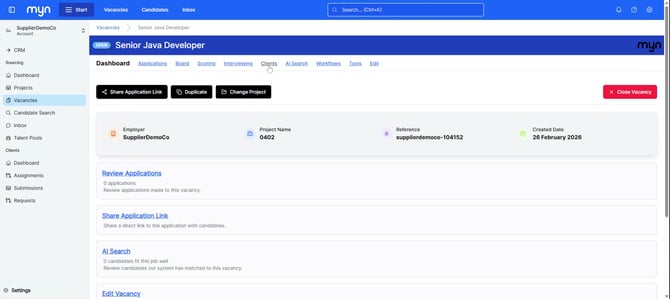
Step 2: Go to the Client Tab
Within the vacancy, navigate to the Client tab at the top of the screen.
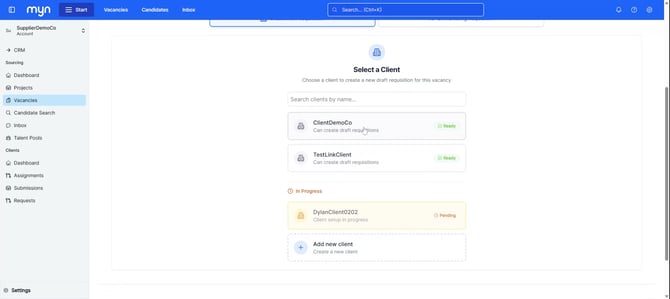
Step 3: Select the Relevant Client
In the Client tab, choose the client for whom you want to create the vacancy requisition.
For example, select Client Demo Co.
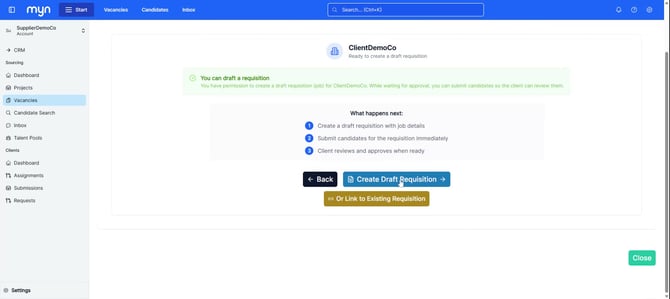
Step 4: Create a Draft Requisition
Create a draft requisition on the selected client’s behalf.
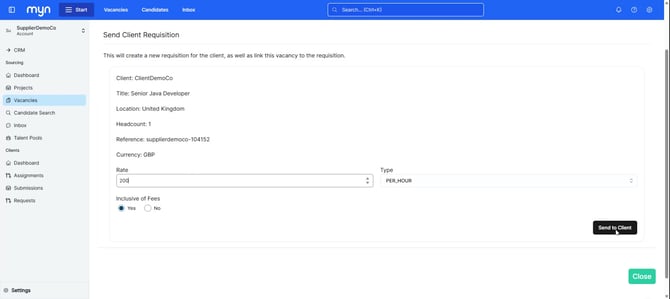
Step 5: Enter Requisition Details and Send to Client
Enter all required requisition details, including whether the fees are inclusive or not.
Once the information is complete, click Send to Client.
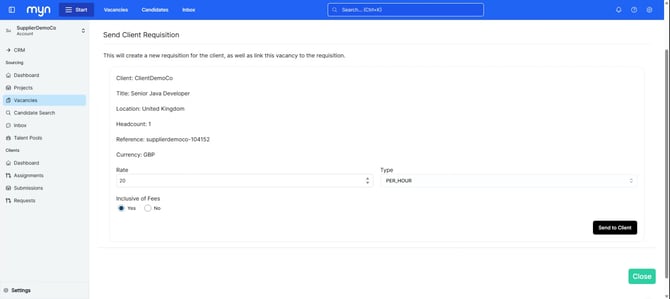
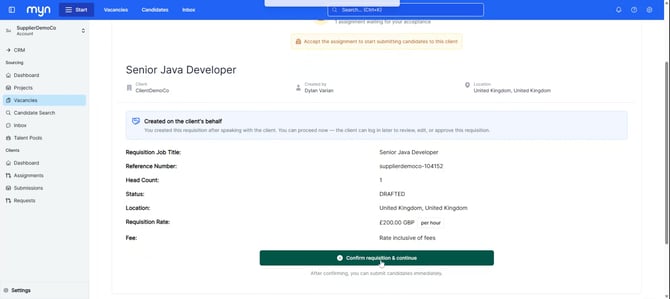
Step 6: Confirm and Finalize the Requisition
Review all requisition details on the confirmation screen.
When satisfied, click Confirm Requisition and Continue to finalize the vacancy requisition assignment.