
Adding a New Client in the Myn Portal CRM
This document explains how to add a new client in the Myn Portal CRM, create an associated lead, and move the client through the pipeline stages until they are ready for onboarding.
Step 1: Open the Myn Portal CRM
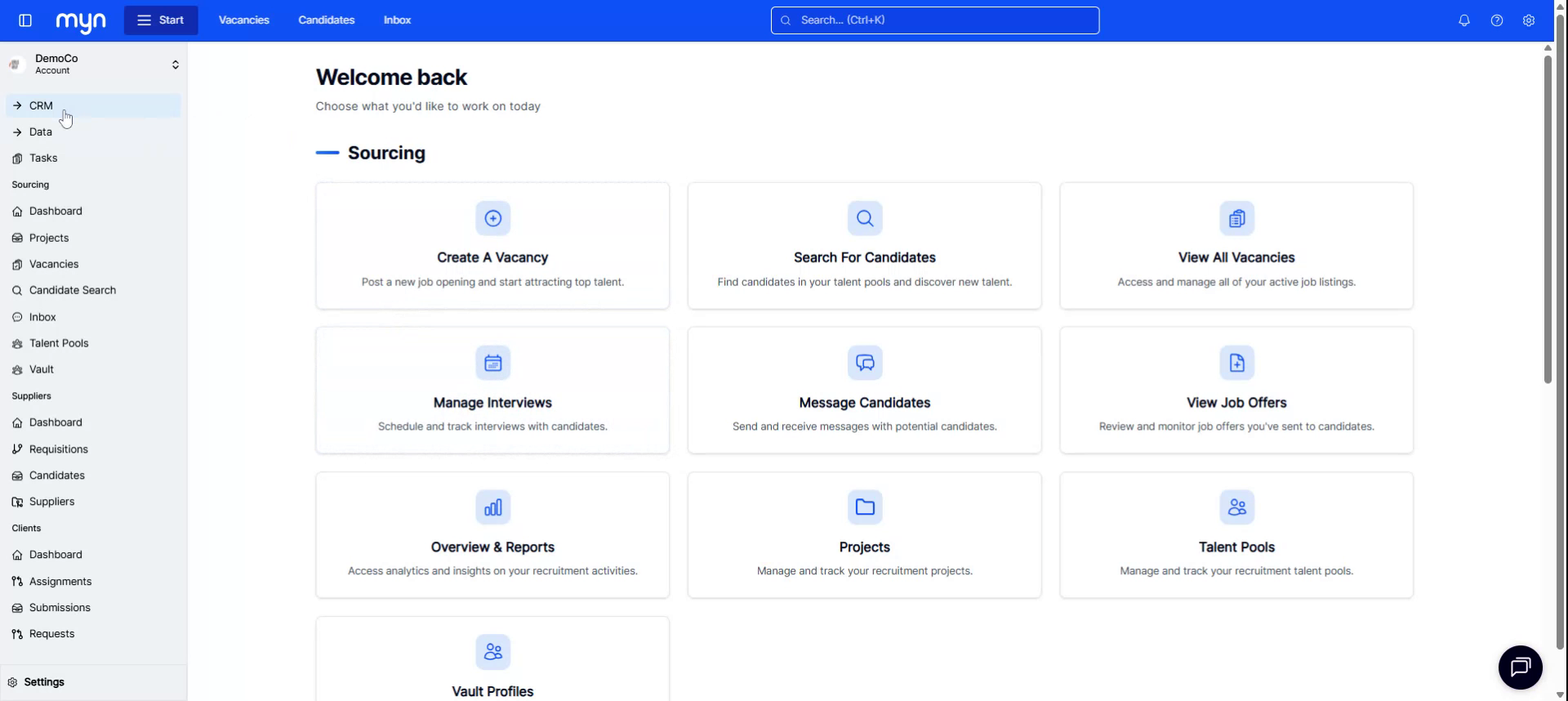
Click on the CRM link in the top-left toolbar of the Myn portal to open the CRM interface.
Step 2: Start Adding a New Client
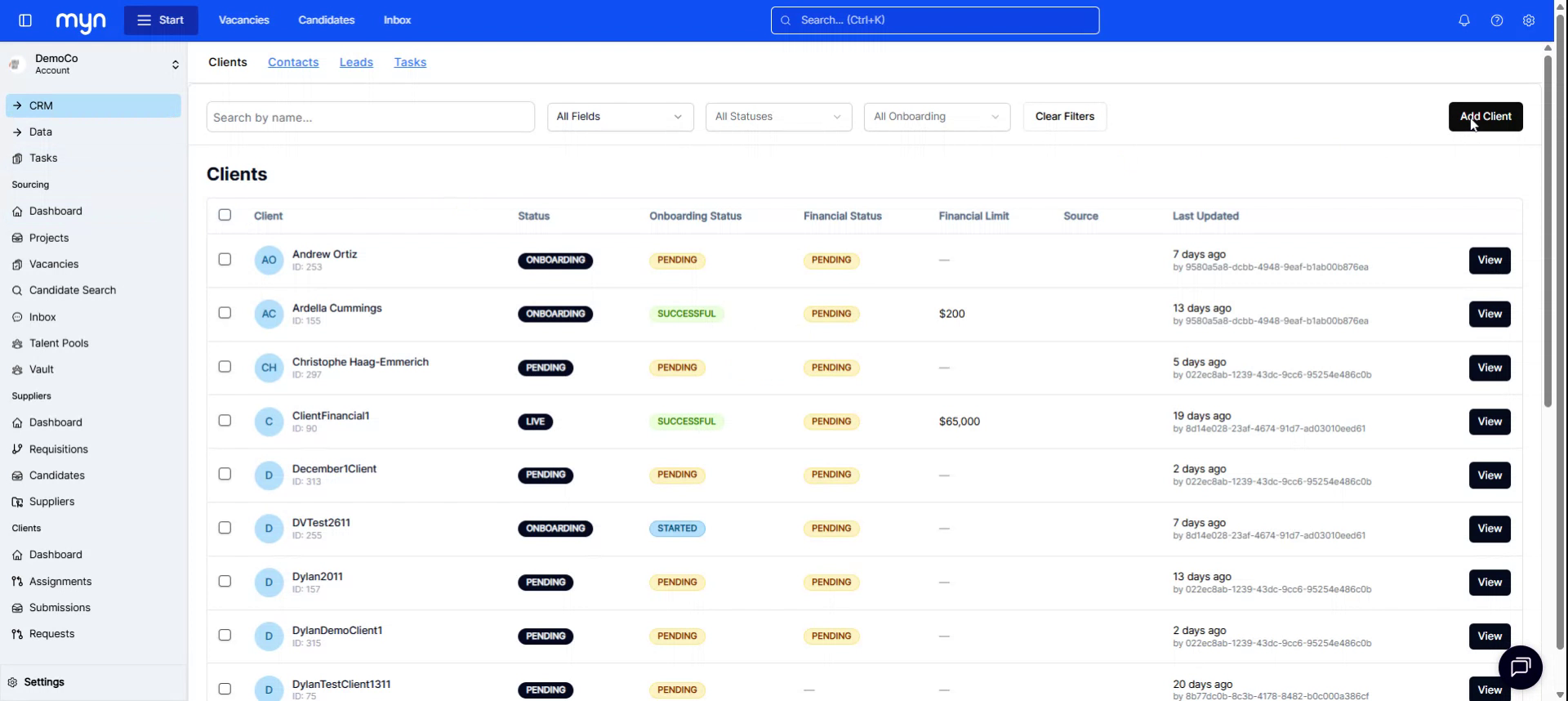
On the CRM page, click the Add Client button located in the top-right corner of the screen.
Step 3: Enter Client and Contact Details
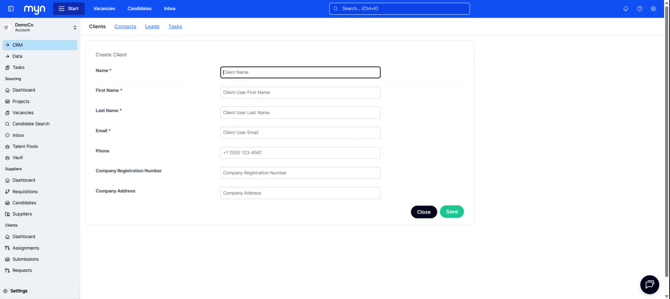
In the client creation form, fill in all required fields:
- Client name (e.g., Test Client 1)
- Primary contact name (e.g., Test Client 1)
- Phone number
- Company registration number
- Company address
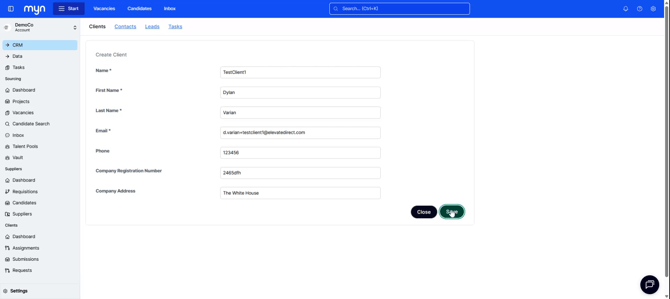
When all information is complete, click Save to create the client record. This will add the client to your system.
Step 4: Add a Lead for the Client
After the client is created, you need to add a lead associated with this client.
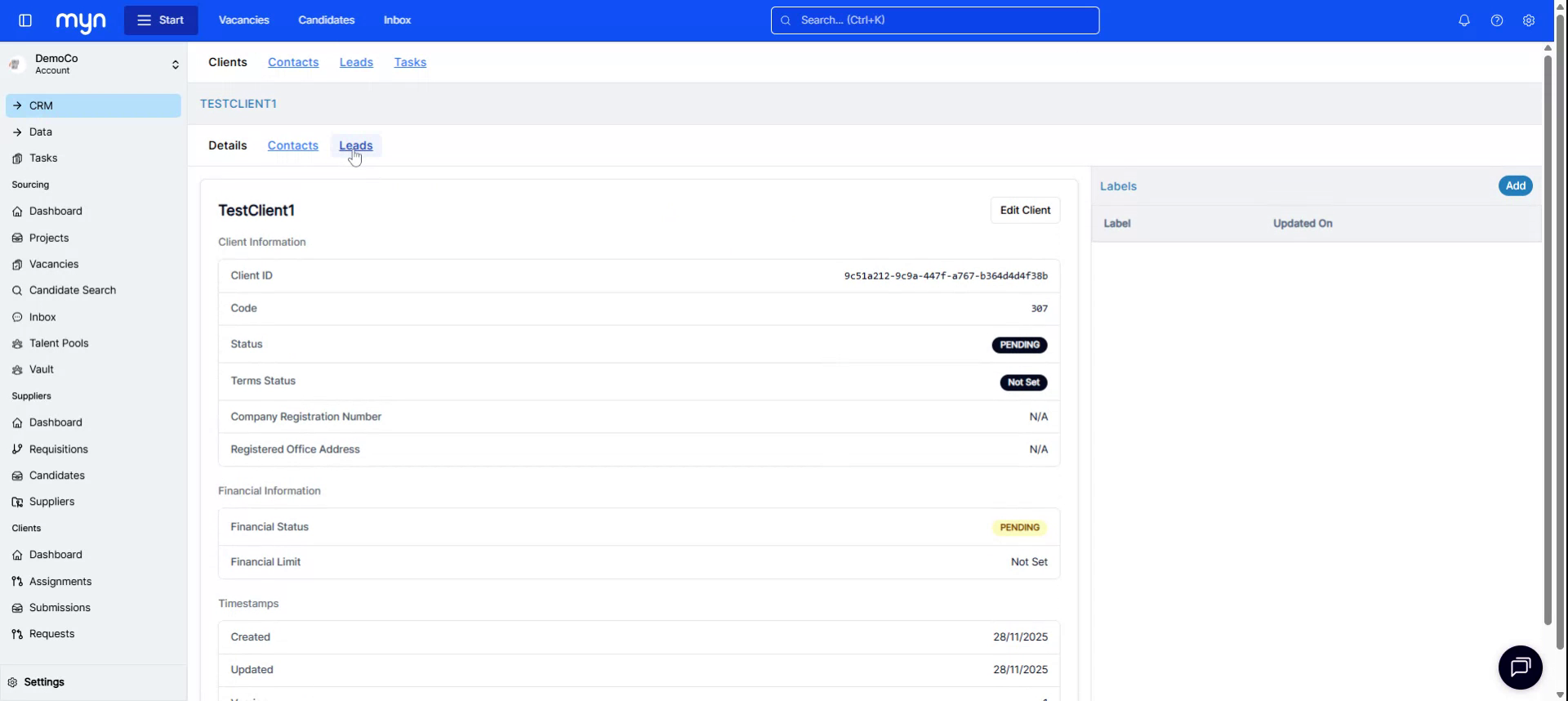
Click Add Lead to begin creating the lead record.
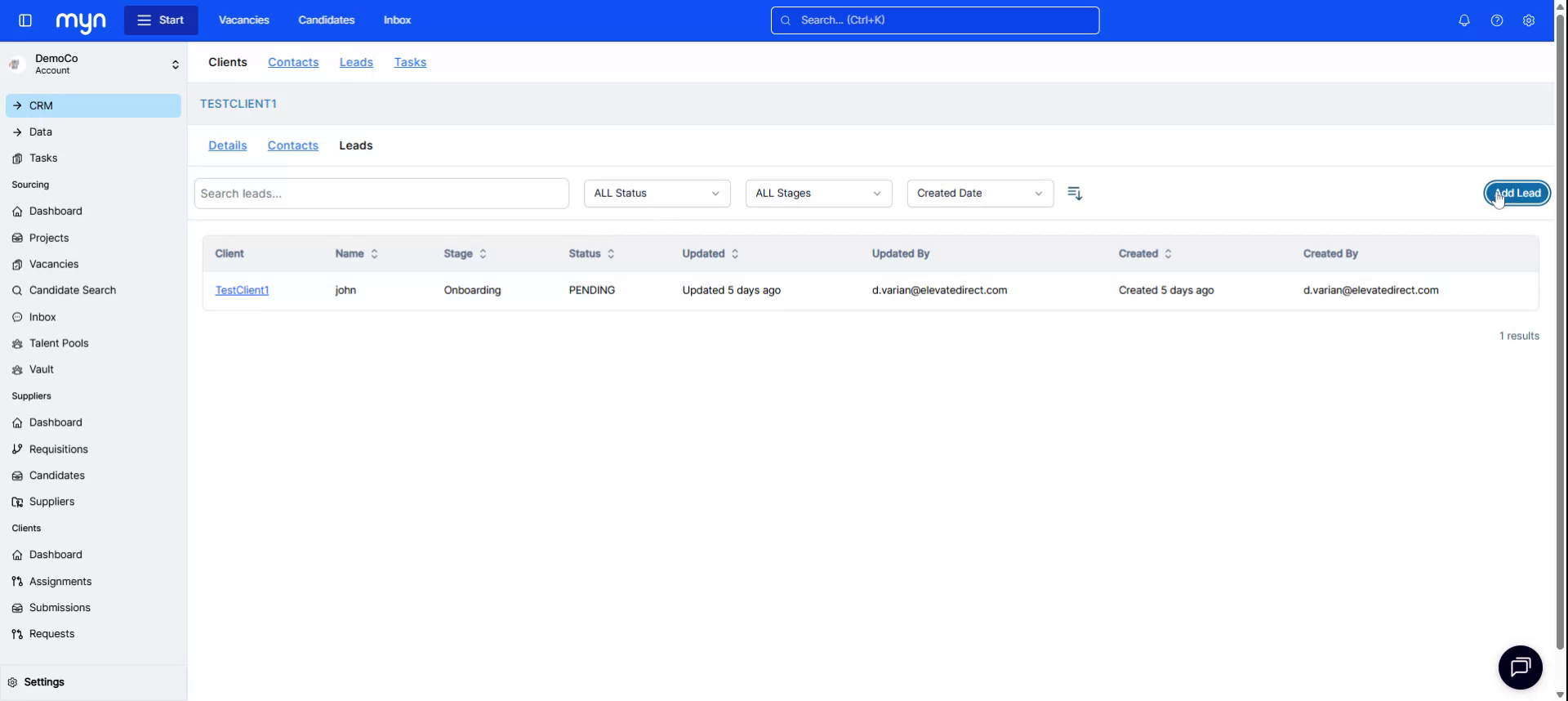
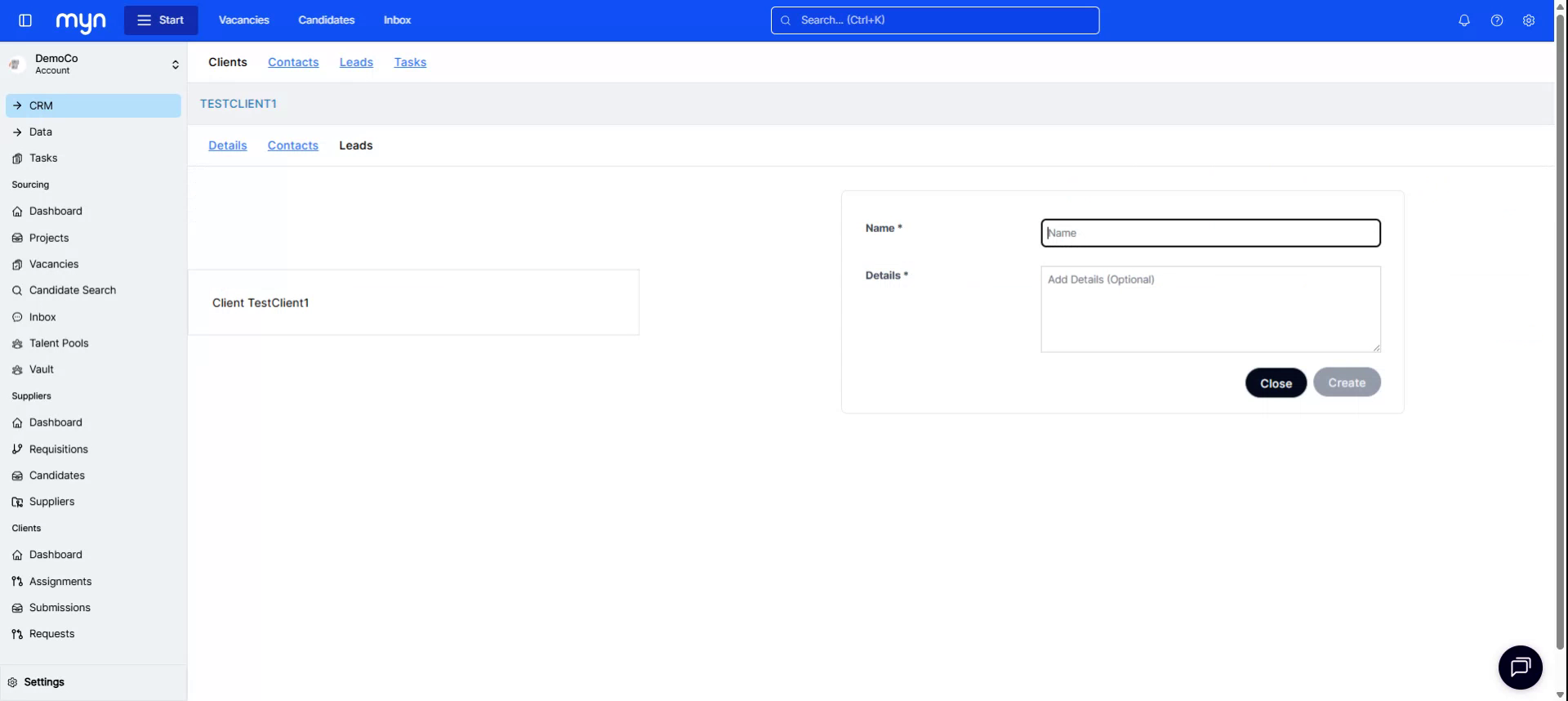
Enter the lead details, such as:
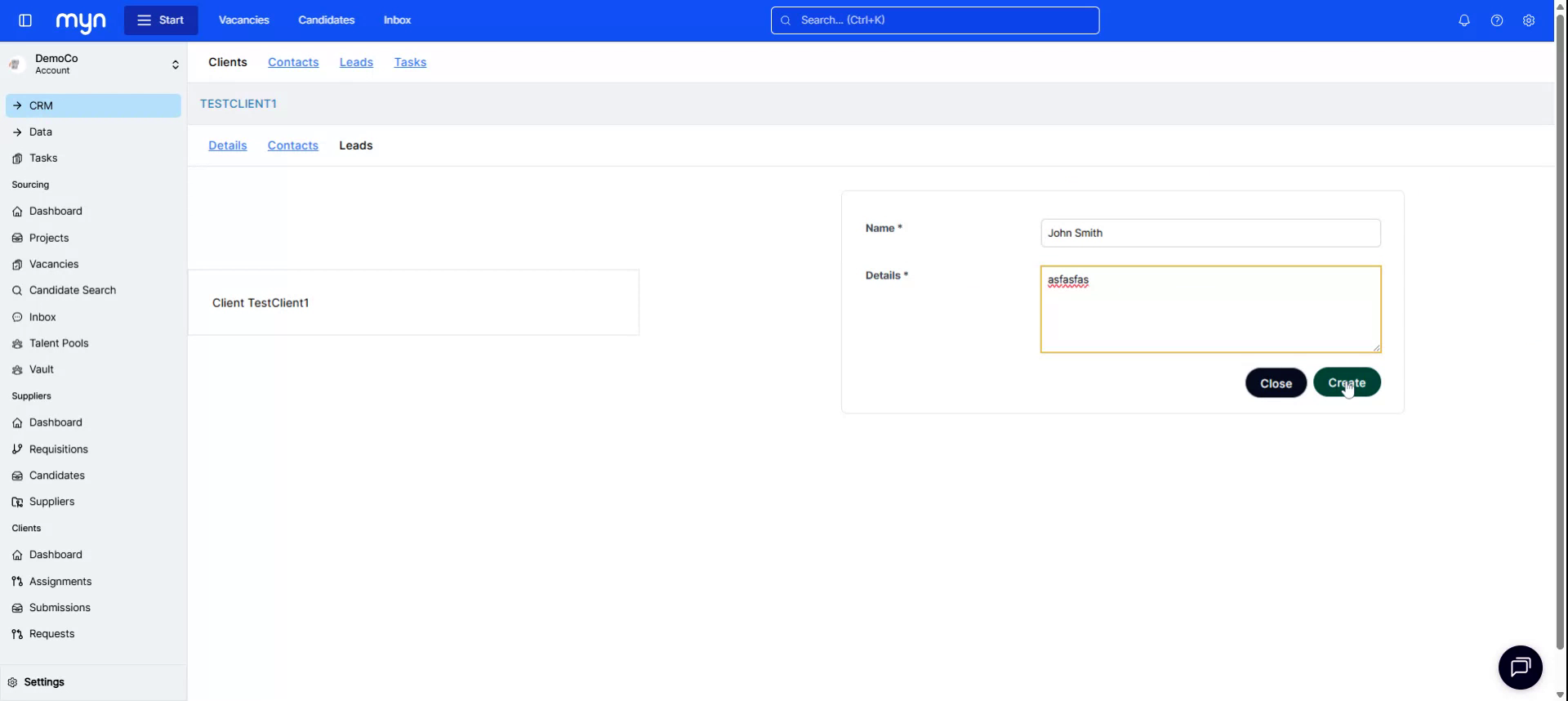
- Lead name (e.g., John Smith)
- Any additional information relevant to the lead under the details section
When ready, click Create to save the lead.
Step 5: Manage the Client via Leads and Move Through Stages
To manage this client and their progress, use the Leads option in the top corner of the CRM.
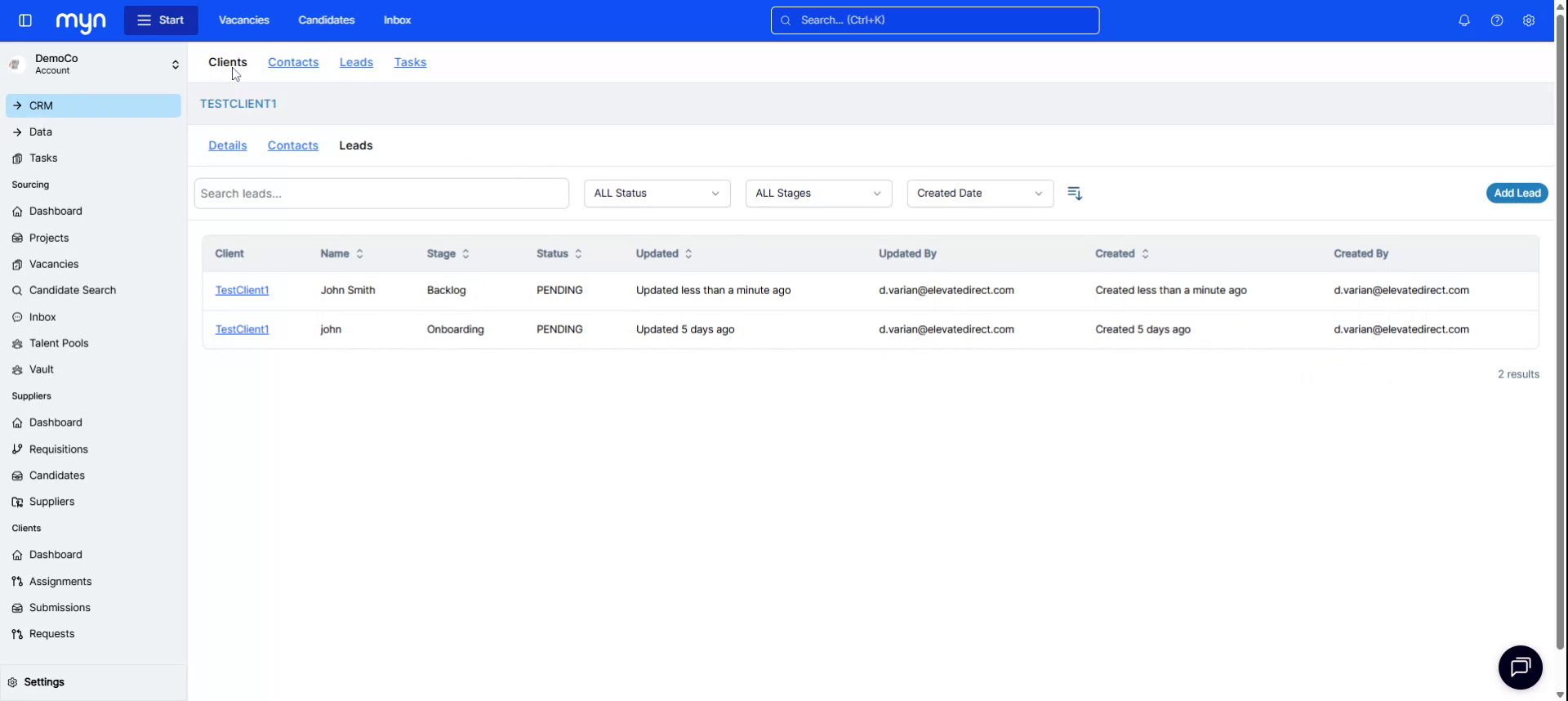
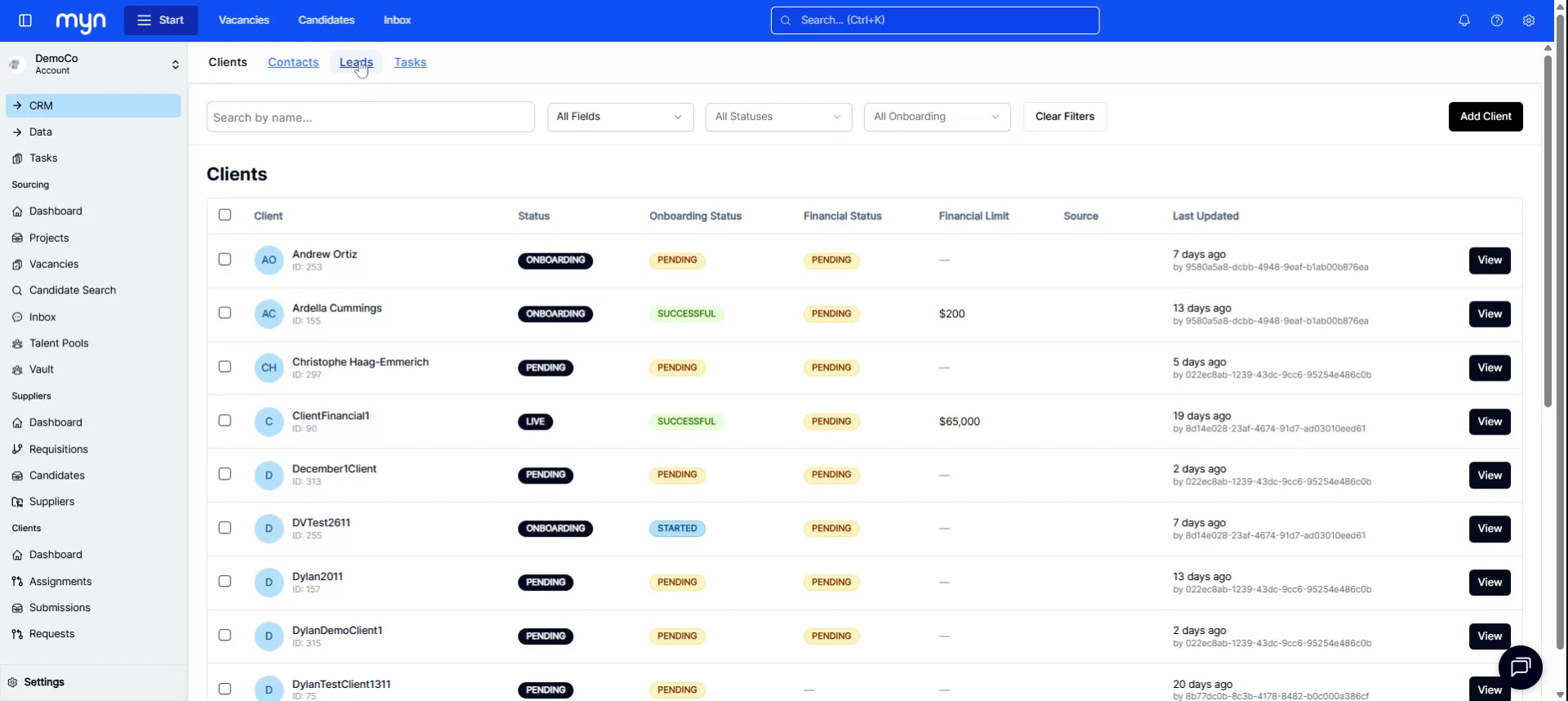
Locate the lead (e.g., John Smith under Test Client 1), and move the client through the appropriate pipeline stages, such as:
- Screening
- Meeting
- Proposal (where they will need to sign terms and conditions)
- Onboarding (once all prior steps and agreements are complete)
After moving the client into the Onboarding step, the client is ready to be fully onboarded onto the system.